

How It Works
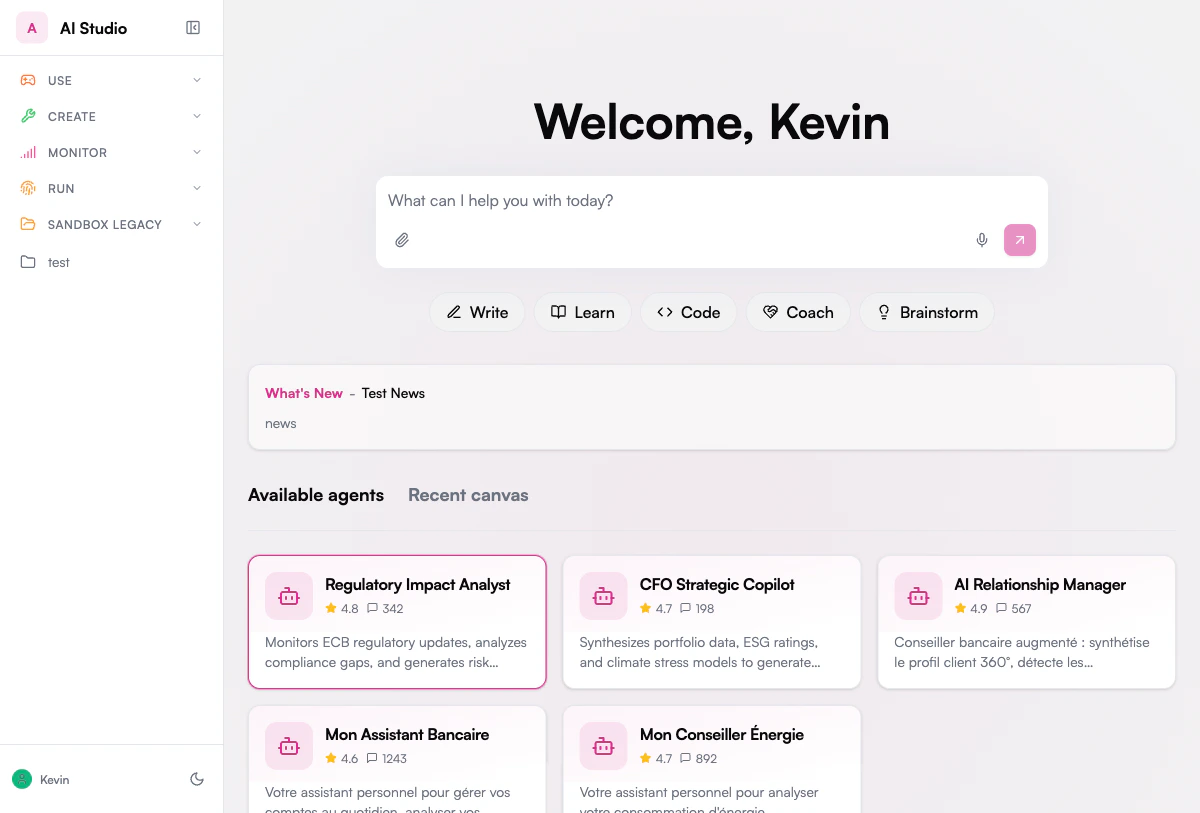
When you open the Chat home screen, category pills appear below the input box. Each pill represents a prompt category. Clicking a category opens a panel with all available prompts in that category.1
Choose a category
Click on one of the category pills below the input box (e.g., Write, Learn, Code).A floating panel opens with the list of prompts available in that category.
2
Preview a prompt
Hover over any prompt in the list. The first line of the prompt template is previewed directly in the input box, so you can see what it will send before committing.
3
Select and send
Click the prompt you want. The full prompt template is loaded into the input box. You can then:
- Edit the text to add your own context or details before sending
- Press Enter to send the prompt as-is to the AI agent
Default Categories
The Prompt Library ships with the following default categories, each containing ready-to-use templates:Write
Professional writing and communication: executive summaries, client emails, meeting notes, business proposals, release notes.
Learn
Knowledge extraction and understanding: explain a concept, summarize a document, compare options, industry briefs, Q&A generation.
Code
Software development assistance: code review, debugging, API design, SQL query building, test case generation.
Coach
Professional guidance and mentoring: constructive feedback, presentation prep, difficult conversations, career strategy, interview preparation.
Brainstorm
Ideation and creative problem solving: idea generation, SWOT analysis, user stories, name generation, risk assessment.
Prompt Template Structure
Each prompt template includes:
Some prompts also include tool guidance — they can suggest or force the AI to use specific tools (e.g., web search, knowledge base) to produce better answers.
Example: Using a Prompt Template
Here’s a typical workflow using the Write > Executive Summary prompt:- Click the Write category pill
- Click Executive Summary in the panel
- The input box fills with the prompt template
- Replace the placeholder with your topic or paste your document content
- Press Enter to get a professional executive summary
For Administrators
A dedicated administration UI for creating, editing, and organizing prompt templates is coming soon. In the meantime, administrators can manage prompts directly through the prompt-library workspace’s Collection in Builder.