

What You Can Do
Discover Agents
Browse available agents, find ones shared with you, and start conversations
Create Agents
Build new agents from scratch or import existing configurations
Add Capabilities
Connect tools, knowledge bases, and integrations to extend what your agent can do
Test & Evaluate
Chat with your agent in the playground and run evaluations to measure quality
The Agent Workspace
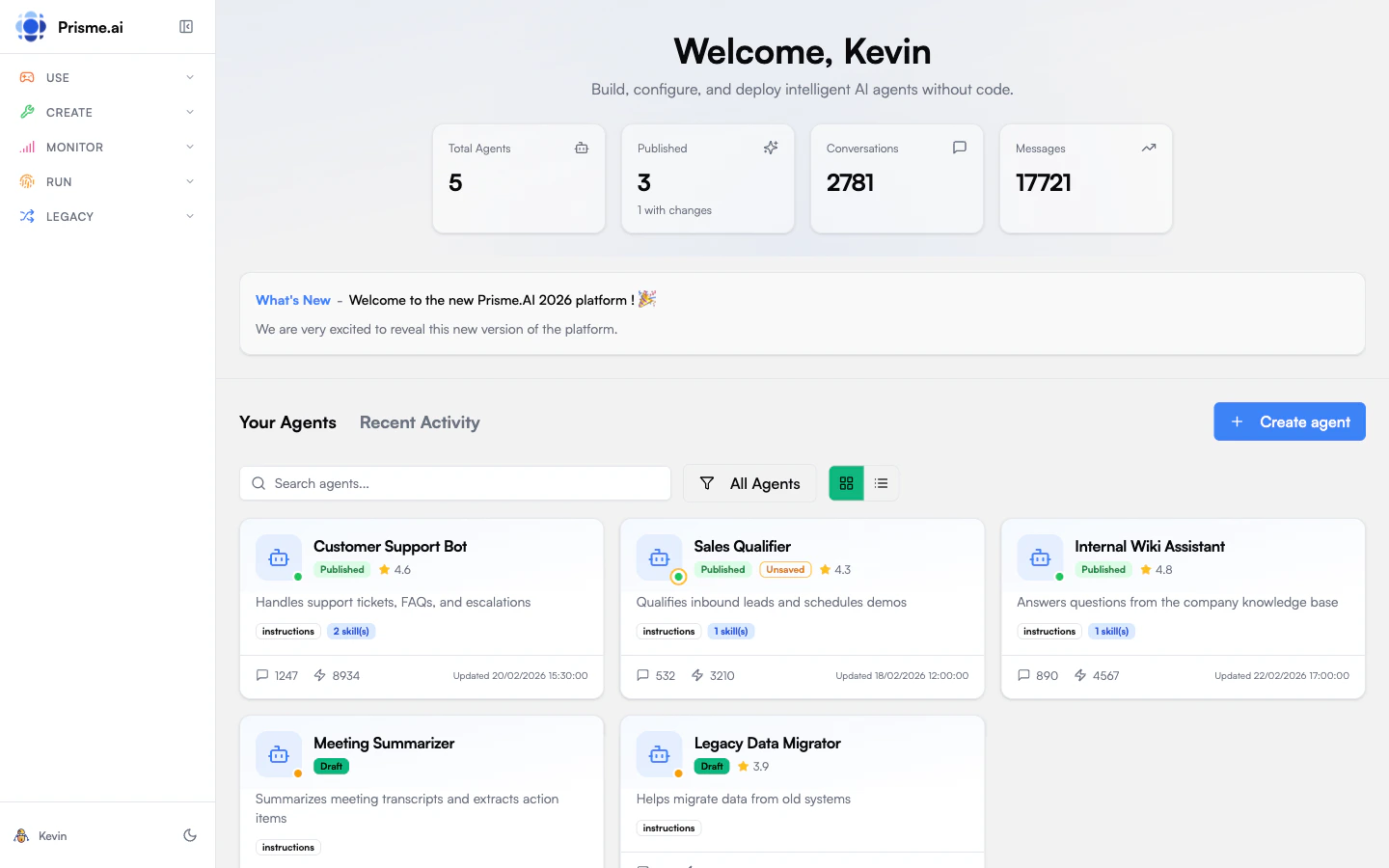
When you open Agent Creator, you’ll see:- Agent Gallery - All agents you have access to, with filters for “My Agents”, “Shared with Me”, and “All”
- Quick Stats - Total agents, published count, conversations, and messages
- Recent Activity - Track what’s happening across your agents
- Overview - See agent status, profile, and key metrics at a glance
- Instructions - Define how your agent behaves through system prompts
- Capabilities - Add tools (APIs, integrations) and knowledge (document stores)
- Playground - Test conversations with your agent in real-time
- Evaluate - Create test cases and run quality evaluations
- Analytics - View usage metrics, performance, and user feedback
- Settings - Configure retention, sharing, memory, and safety guardrails
Agent Profiles
Agents are created with a profile that determines their capabilities. Profiles are graduated levels of complexity:- Simple
- Workflow
- Agent Light
- Agent Full
- Orchestrator
Direct LLM call with optional RAG. No tool use, no multi-turn reasoning. Best for FAQ bots, document summarization, simple Q&A with a knowledge base.
Publishing & Sharing
Agents have two states:- Draft - Work in progress, only visible to you
- Published - Live version that others can use
- Public — The agent appears in the agent store and is accessible to all users in the organization. Anyone can start a conversation.
- Restricted — The agent description appears in the agent store but is only accessible to users or groups that have been explicitly granted access.
Access Control
An agent owner can share their agent with specific users or groups. Each share creates a binding that grants access. Bindings can target:- A single user — by user ID
- A group — by group ID, granting access to all members
Access Requests
Users who discover a restricted agent can request access:- The user submits an access request on the agent
- The agent owner sees the pending request
- The admin approves or rejects the request
- On approval, a binding is created and the user gains access immediately
Next Steps
1
Discover existing agents
Browse what’s already available in your organization.Explore agents →
2
Create your first agent
Build a simple assistant to learn the basics.Create an agent →
3
Add capabilities
Connect knowledge bases and tools to make it useful.Add capabilities →