

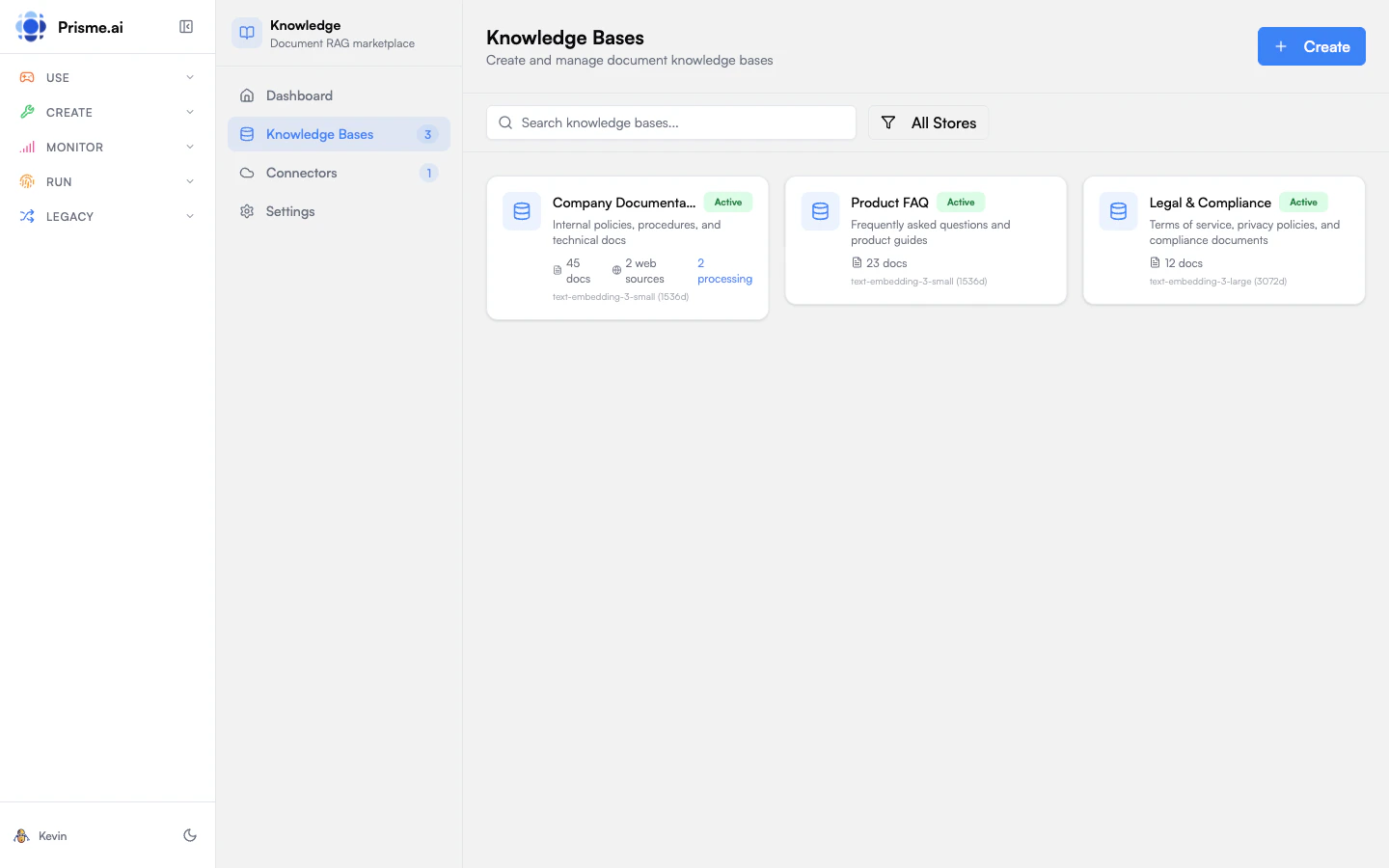
Viewing Knowledge Bases
Open Knowledges and go to Knowledge Bases to see all stores you have access to. Each card shows:- Name and description
- Document count - How many files are indexed
- Status - Ready, processing, or error
- Created date
- All - Everything you can access
- My Knowledge Bases - Stores you created
- Shared with Me - Stores others have shared
Creating a Knowledge Base
- Click Create Knowledge Base
- Enter a name and description
- Select an embedding model
- Click Create
Choosing an Embedding Model
The embedding model determines how documents are converted to vectors for search. Options depend on your organization’s configuration.
When a model supports multiple dimensions, higher dimensions capture more nuance but use more storage. The default is usually a good balance.
Adding Documents
Once created, add content to your knowledge base:File Upload
- Click Upload or drag files into the drop zone
- Select one or more files
- Wait for processing to complete
URL Import
Add individual web pages:- Click Add URL
- Enter the page URL
- Click Add
Web Crawling
Automatically discover and index pages from a website:- Click Add Web Source
- Enter the root URL
- Configure crawl settings:
- Path filter - Limit discovery to one section
- Blacklisted patterns - Skip low-value URL patterns
- Sitemap only - Crawl URLs from the sitemap
- XPath filter - Extract only useful page content
- Click Start Crawling
Managing Documents
Viewing Files
The Documents tab shows all content in your knowledge base:- Filename - Original file name or URL
- Type - File type (PDF, URL, etc.)
- Status - Indexed, processing, or error
- Size - File size
- Chunks - Number of text chunks created
- Date - When added
Filtering
Filter documents by source type:- All - Everything
- Files - Uploaded documents
- URLs - Individual web pages
- Web Crawl - Crawler-discovered pages
Document Actions
For each document:Viewing Chunks
Click View Chunks to see how a document was split:- Each chunk is a segment of text
- Chunks include metadata (page number, section, etc.)
- Preview how the agent will see the content
Knowledge Base Settings
Click a knowledge base to open its detail view, then go to Settings.Basic Settings
- Name - Display name
- Description - What this knowledge base contains
- Tags - Keywords for organization
RAG Configuration
Control how documents are processed and retrieved:Sharing
Control who can access this knowledge base. See Sharing & Access Control for full details. In brief:- Reader: Can search and view documents
- Editor: Can upload and modify documents
- Admin: Can manage who has access
- Owner: Full control including deletion
Reindexing
If you change RAG settings, you may need to reindex:- Go to Settings
- Click Reindex All Documents
- Wait for processing to complete
Deleting a Knowledge Base
To remove a knowledge base:- Open the knowledge base
- Go to Settings
- Scroll to Danger Zone
- Click Delete Knowledge Base
- Type the name to confirm
Best Practices
Organize by topic
Organize by topic
Create separate knowledge bases for different domains rather than one giant collection. This improves retrieval accuracy and makes management easier.
Keep content fresh
Keep content fresh
Regularly update documents. Set up connectors for automatic syncing, or schedule manual reviews.
Use meaningful descriptions
Use meaningful descriptions
Good descriptions help others understand what each knowledge base contains and when to use it.
Monitor quality
Monitor quality
Test retrieval regularly. If agents aren’t finding relevant content, check chunk settings or add more specific documents.
Next Steps
Document management
Learn more about uploading and organizing documents
Crawl a website
Discover and index pages from a website
Connect to agents
Attach knowledge bases to your agents