

What You Can Do
Create Knowledge Bases
Build searchable document stores for specific topics or domains
Upload Documents
Add files, URLs, and web content to your knowledge bases
Crawl Websites
Discover and index website pages into a knowledge base
Connect Sources
Sync with SharePoint, Google Drive, and other platforms
Configure Retrieval
Fine-tune how documents are processed and searched
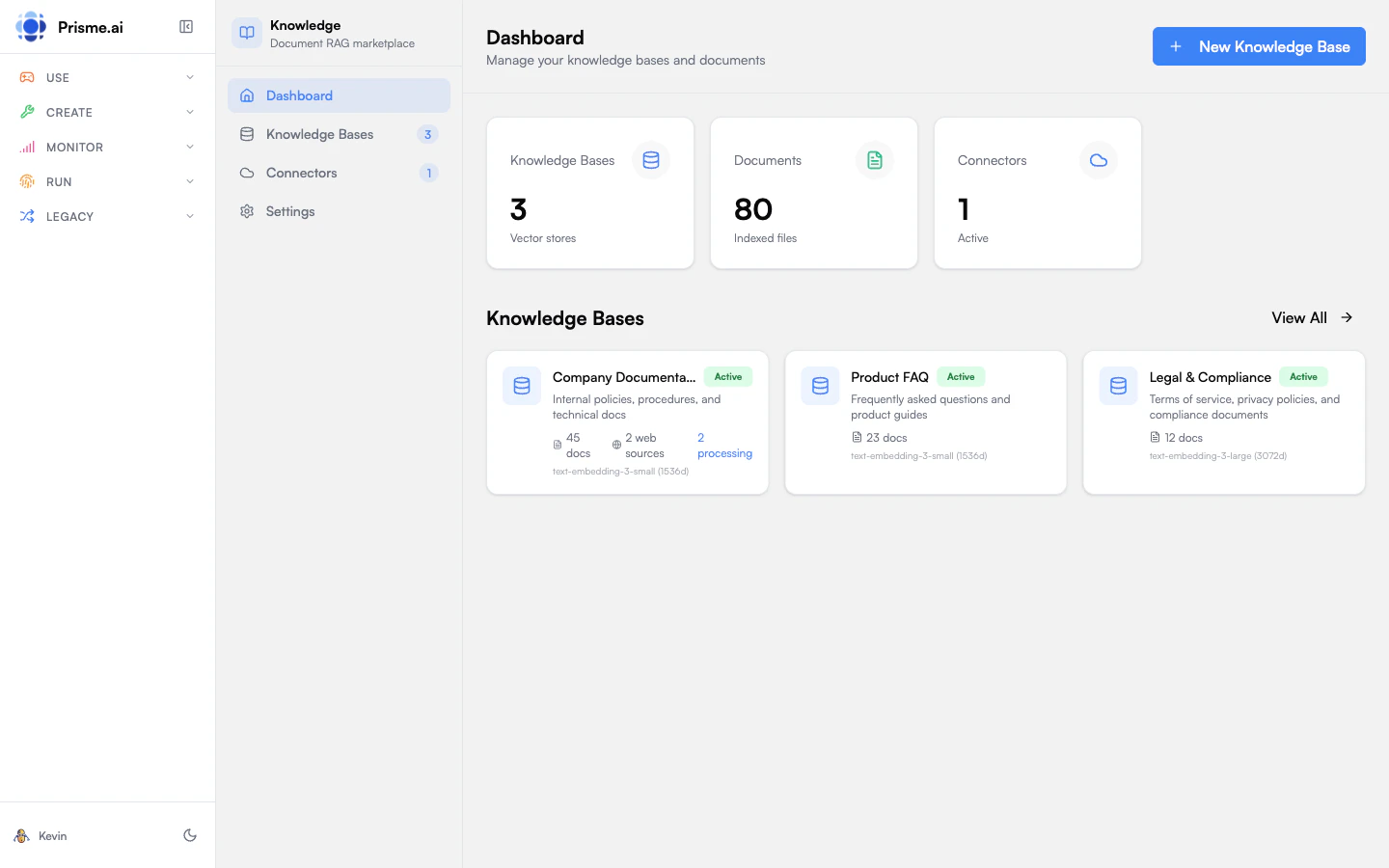
The Knowledges Workspace
When you open Knowledges, you’ll see:- Dashboard - Overview of your knowledge bases and statistics
- Knowledge Bases - List of all your document stores
- Connectors - External source connections
- Settings - Global defaults and configuration
How It Works
1
Create a knowledge base
Click Create Knowledge Base and give it a name. Choose an embedding model to determine how documents are vectorized.
2
Add documents
Upload files, add a single URL, or crawl a website to pull content automatically.
3
Documents are processed
Knowledges extracts text, splits it into chunks, and creates embeddings for semantic search.
4
Connect to agents
In Agent Creator, add the knowledge base as a capability. The agent can now search your documents.
Supported Content
File Uploads
Web Sources
- Single URLs - Add individual pages
- Web Crawling - Automatically discover and index pages from a website
- Sitemaps - Efficiently index large sites
Connectors
- SharePoint - Sync document libraries and sites
- Google Drive - Connect folders and files
- Confluence - Import wiki pages
- More connectors available based on your organization’s setup
Key Concepts
Embeddings
Documents are converted to embeddings - numerical representations that capture meaning. This allows semantic search: finding relevant content even when exact keywords don’t match.Chunking
Large documents are split into smaller chunks for better retrieval. You can configure:- Chunk size - How many tokens per chunk (default: 512)
- Overlap - How much consecutive chunks share
RAG (Retrieval Augmented Generation)
When an agent searches your knowledge base:- The query is converted to an embedding
- Similar document chunks are retrieved
- These chunks become context for the AI response
- The agent generates an answer grounded in your documents
Sharing Knowledge Bases
Knowledge bases can be shared like agents:
Share settings are in the knowledge base’s Settings tab.
Use Cases
Internal documentation
Internal documentation
Upload HR policies, IT procedures, and company guidelines. Create an agent that helps employees find answers to common questions.
Product support
Product support
Add product manuals, FAQs, and troubleshooting guides. Build a support agent that provides accurate technical assistance.
Research library
Research library
Index papers, reports, and studies. Create a research assistant that helps find relevant sources and summarize findings.
Training materials
Training materials
Collect learning resources, course content, and reference materials. Build an onboarding agent for new employees.
Getting Started
1
Open Knowledges
Navigate to Knowledges from your workspace sidebar.
2
Create your first knowledge base
Click Create Knowledge Base, name it, and select an embedding model.
3
Add some documents
Upload a few files or add a URL to test with.
4
Connect to an agent
Go to Agent Creator, open an agent, and add the knowledge base in Capabilities.
5
Test it out
Ask the agent questions about your documents and see how it uses the knowledge base.
Next Steps
Create knowledge bases
Learn how to set up and organize document stores
Manage documents
Upload, update, and organize your content
Crawl a website
Add and maintain web pages as searchable documents
Connect external sources
Sync with SharePoint, Google Drive, and more
Configure RAG settings
Optimize retrieval for your use case