

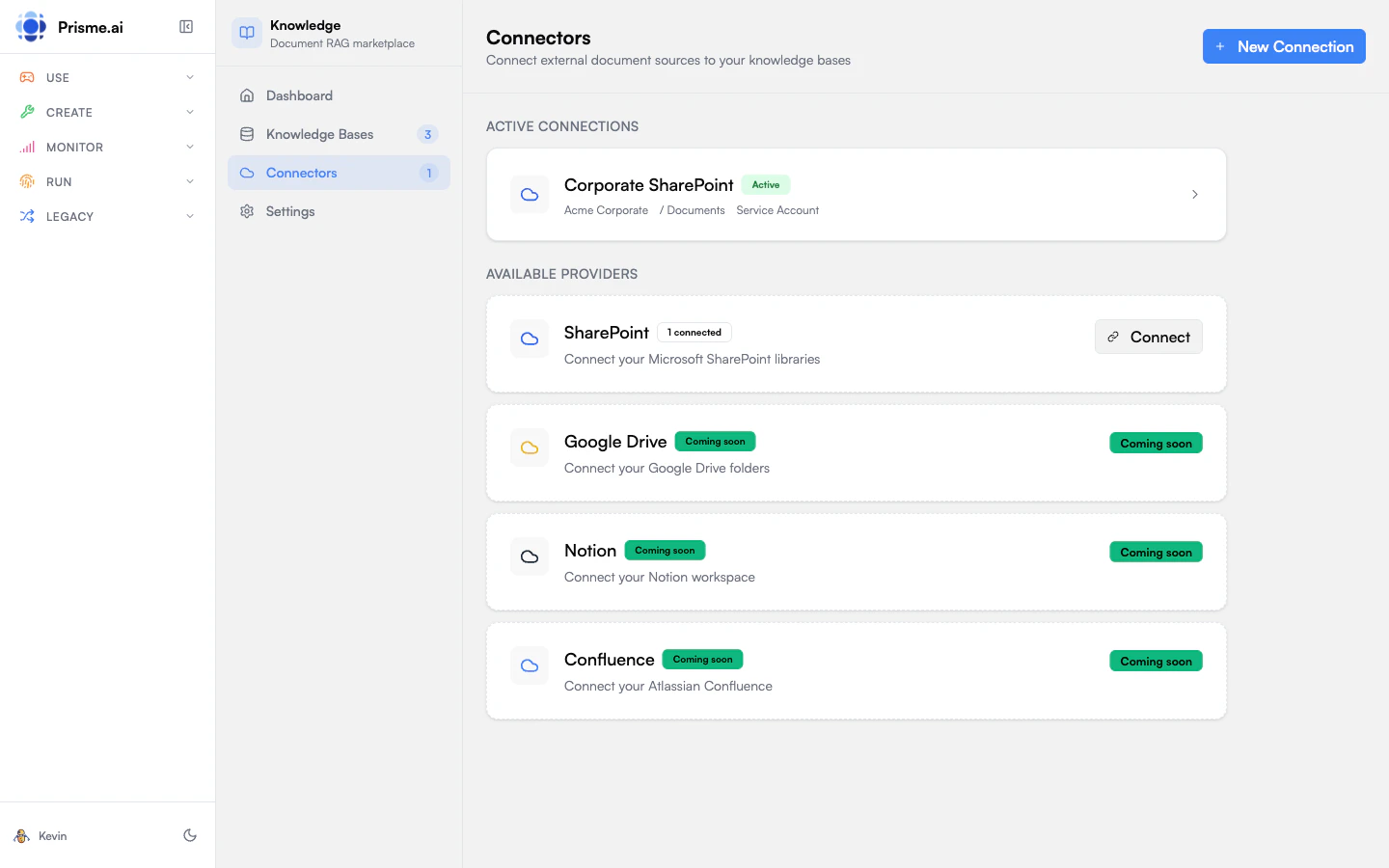
Available Connectors
Available connectors depend on your organization’s configuration. Contact your admin to enable additional connectors.
The Connectors Page
Open Knowledges and go to Connectors to see:- Active connections - Currently configured syncs
- Available connectors - Connectors you can set up
- Sync status - When each connection last synced
Setting Up a Connector
1. Choose a Connector
- Go to Connectors
- Click Add Connection
- Select the connector type
2. Authenticate
Most connectors require authentication. Depending on your organization’s setup, you’ll see one of two modes:
For personal authentication:
- Click Connect
- Sign in to the external service
- Grant permissions when prompted
- Return to Knowledges
3. Select Content
Choose what to sync:- Browse available sites, folders, or spaces
- Select the content you want
- Choose or create a knowledge base as the destination
4. Configure Sync Settings
5. Start Sync
Click Start Sync to begin the initial synchronization. This may take time depending on how much content you’re syncing.Managing Connections
Viewing Status
Each connection shows:- Status - Connected, syncing, error, or disconnected
- Last Sync - When it last ran
- Documents - How many files are synced
- Errors - Any files that failed to sync
Recent sync runs are stored in history so you can review past syncs and identify patterns.
Triggering Manual Sync
To sync immediately instead of waiting for the schedule:- Find the connection
- Click Sync Now
- Wait for completion
Updating Configuration
To change what’s synced:- Click the connection
- Modify the selection or settings
- Save changes
- Run a sync to apply changes
Disconnecting
To remove a connection:- Click the connection
- Click Disconnect
- Confirm
SharePoint Connector
The SharePoint connector supports:- Sites - Team sites and communication sites
- Document Libraries - Files stored in SharePoint
- Lists - List attachments (if enabled)
- Pages - SharePoint pages (as HTML)
Permissions Required
The connector needs:Sites.Read.All- Read site contentFiles.Read.All- Read file content
Configuring SharePoint
- Connect with your Microsoft account
- Browse available sites
- Select document libraries to sync
- Configure filters:
- File Types - Include/exclude by extension
- Modified Since - Only sync recent files
- Path Patterns - Include/exclude by folder path
Handling Large Libraries
For large SharePoint libraries:- Use filters to sync only relevant content
- Consider multiple connections for different topics
- Start with a subset and expand gradually
Google Drive Connector
The Google Drive connector supports:- Folders - Any folder in Drive
- Shared Drives - Team drives (Google Workspace)
- Files - Individual files (Google Docs, Sheets, etc.)
Permissions Required
drive.readonly- Read access to Drive files
Configuring Google Drive
- Connect with your Google account
- Browse My Drive, Shared Drives, or Shared with Me
- Select folders to sync
- Configure options
Google Docs/Sheets/Slides
Native Google formats are automatically converted:- Google Docs - Exported as text/HTML
- Google Sheets - Exported as CSV
- Google Slides - Exported as text
Sync Behavior
Incremental Sync
After the initial sync, connectors only process changed files:- New files are added
- Modified files are updated
- Deleted files are removed (optional)
Handling Deletions
By default, when a file is deleted from the source:- It’s removed from the knowledge base too
- This keeps content current
Conflict Resolution
If the same file is synced from multiple sources:- The most recently modified version is used
- Consider using separate knowledge bases to avoid conflicts
Troubleshooting
Connection Errors
Sync Errors
Click View Errors on a connection to see details about failed files.
Stuck Syncs
If a sync seems stuck:- Check the connection status
- Click Cancel Sync if available
- Try Sync Now to restart
Best Practices
Use filters strategically
Use filters strategically
Don’t sync everything. Focus on high-value content that’s relevant to your use case.
Organize by topic
Organize by topic
Create separate knowledge bases for different departments or topics, with dedicated connections for each.
Monitor sync health
Monitor sync health
Check connections regularly. Address errors before they accumulate.
Consider sync frequency
Consider sync frequency
More frequent syncs keep content current but use more resources. Match frequency to how often content changes.
Next Steps
Configure RAG settings
Optimize retrieval for your synced content
Connect to agents
Use your synced knowledge in AI agents