

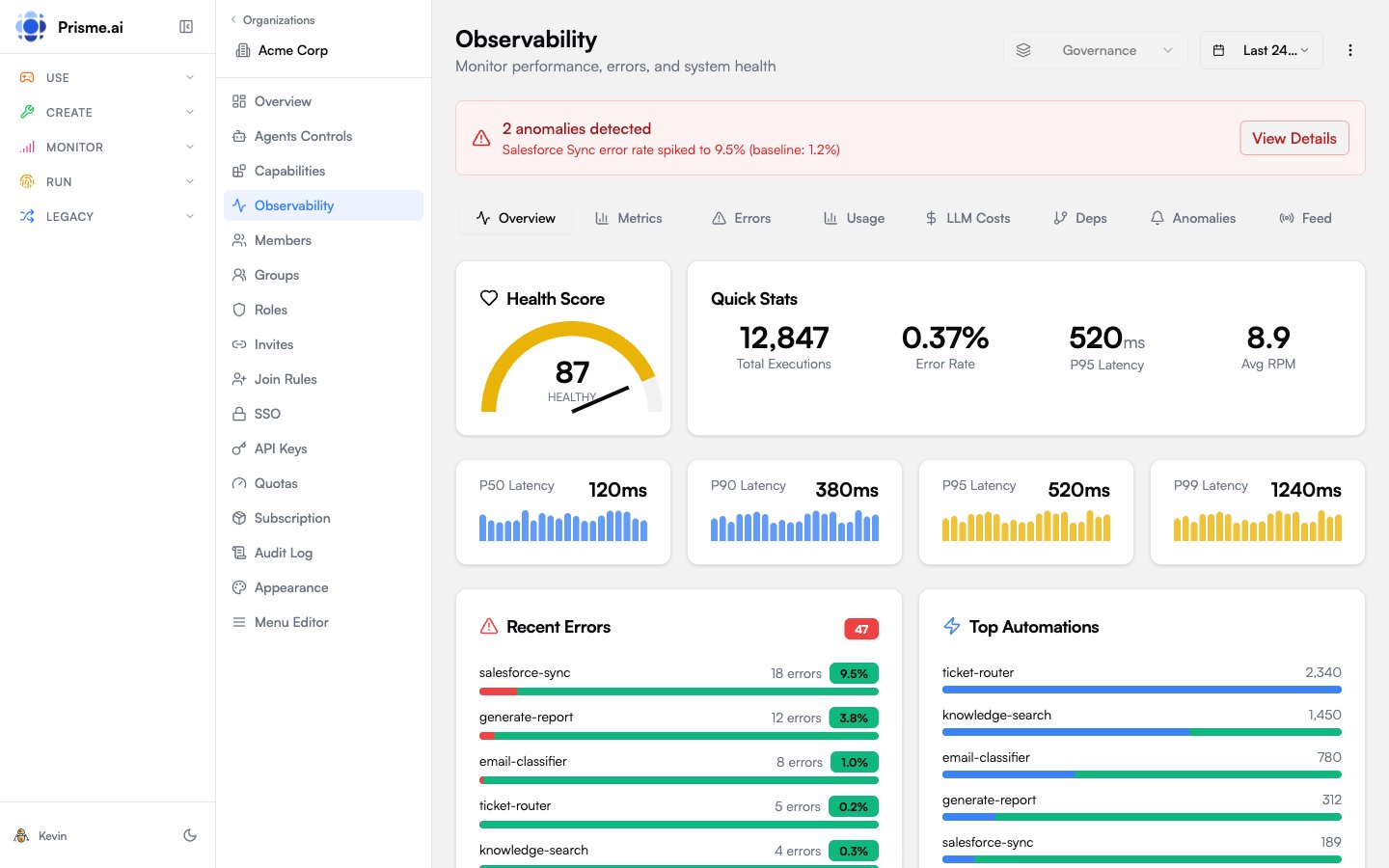
Dashboard Overview
The observability dashboard shows key metrics at a glance:Health Score
The health score combines multiple factors into a single 0-100 metric:Factor Breakdown
Performance Metrics
Latency Percentiles
Track response time distribution:Slowest Automations
Identify bottlenecks by viewing automations ranked by average execution time.Timeline View
Visualize performance over time with:- P95 latency trend (area chart)
- Request volume (line overlay)
Error Tracking
Error Distribution
View errors grouped by:- Type:
InvalidExpressionSyntax,FetchError,TimeoutError, etc. - Automation: Which automations generate the most errors
Error Rate Trend
Track error rate changes over time to identify:- New bugs introduced
- External service outages
- Configuration issues
Recent Errors
View the latest errors with:- Timestamp
- Error type and message
- Automation name
- Correlation ID (for tracing)
LLM Costs
Monitor AI model consumption and costs:Cost Breakdown
By Model
See which models consume the most resources:- Model name
- Number of calls
- Cost percentage
- Token count
By Automation
Identify which automations drive LLM costs:- Automation name
- Call count
- Relative usage
Cost Timeline
Track daily cost trends to:- Forecast monthly spend
- Identify cost anomalies
- Plan capacity
Request Traces
Trace individual requests through the entire execution flow.Accessing Traces
- From the Observability dashboard, click View Traces
- Or click a correlation ID in the error list
Trace View
Each trace shows:Timeline Visualization
The waterfall chart shows:- Each automation as a horizontal bar
- Start time offset from request start
- Duration of each step
- Errors highlighted in red
Dependency Graph
Visualize how automations call each other.Graph View
- Nodes: Automations and installed apps
- Edges: Calls between components
- Edge weight: Call frequency
Use Cases
- Understand system architecture
- Identify critical paths
- Find orphaned automations
Anomaly Detection
Automatic detection of unusual patterns.Anomaly Types
Severity Levels
Configuration
Adjust detection sensitivity:- Low: Only alert on significant anomalies
- Medium: Balanced detection (default)
- High: Alert on minor deviations
Period Comparison
Compare metrics between two time periods.How to Compare
- Select current period dates
- Select comparison period dates
- View side-by-side metrics
Compared Metrics
- Execution count
- Error count and rate
- Average and P95 latency
- Unique users
Trend Indicators
- Up: Increase > 5%
- Down: Decrease > 5%
- Stable: Within ±5%
Real-Time Feed
Monitor events as they happen.Event Types
Filtering
- All: Show all events
- Errors: Only error events
- Executions: Only completion events
Time Window
Configure how far back to show events (default: 60 minutes).Time Range Selection
All views support time range selection:Platform Summary (Admin Only)
Platform administrators see a platform-wide summary:- Aggregate health score across all workspaces
- Total platform requests
- Combined LLM costs
- Peak capacity usage
Best Practices
Set Baselines
Establish normal performance baselines for comparison
Monitor Anomalies
Enable anomaly detection for early warning
Track Costs
Review LLM costs weekly to prevent surprises
Use Traces
Investigate errors using correlation IDs
Troubleshooting
- High Latency
- High Error Rate
- Cost Spikes
- Check Slowest Automations for bottlenecks
- Review the Timeline for load correlation
- Examine traces for slow steps
- Check external API response times
Next Steps
Model Governance
Control model access and costs
Audit Logs
Track administrative changes