

What Changed
No Legacy Canvas
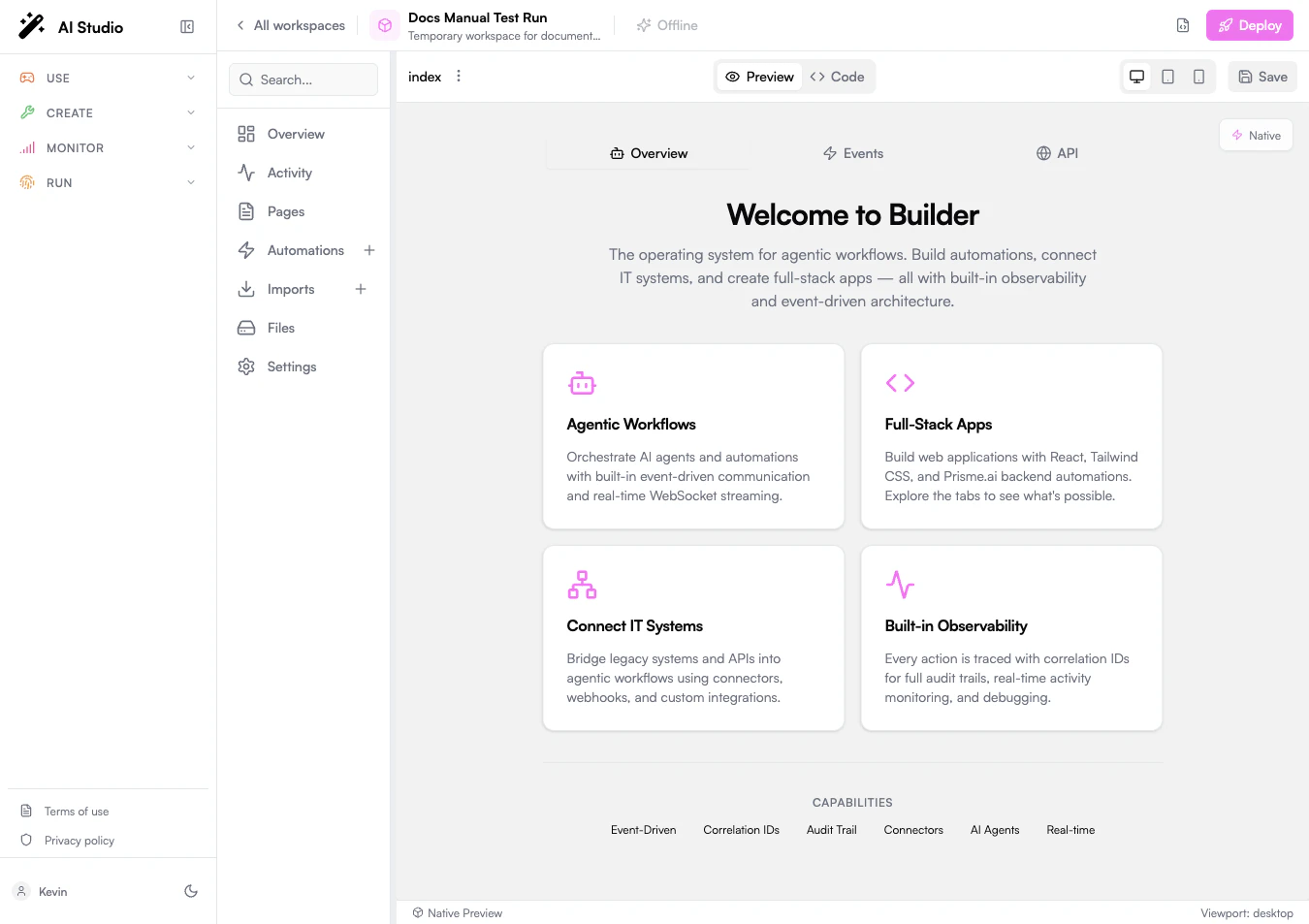
The old visual block editor is no longer a Builder navigation item. User interfaces are built from React components and files.
Code and Preview
Pages have a source editor and a native preview. Switch between them from the page toolbar.
React Template
A new page can initialize a React, Vite, Tailwind CSS, and Radix-based starter application.
Deployment Preview
Deployed bundles can appear in the Pages list as read-only previews.
Page Workspace
The Builder layout is organized around the workspace sidebar:- Overview shows usage, recent changes, errors, and quick actions.
- Activity shows event traces and correlation IDs.
- Pages contains editable source pages and read-only deployed bundles.
- Automations contains backend workflows and webhooks.
- Imports manages installed apps, custom code, and integration packages.
- Files lists uploaded workspace assets.
- Settings manages workspace configuration, sharing, secrets, and RBAC.
index. It represents the source app that Builder compiles and previews.
Create a Page
1
Open the workspace
In AI Studio, open Create > Builder, then select the workspace that should contain the page.
2
Open Pages
Select Pages in the Builder sidebar. If the workspace has no page source yet, click the + action or initialize the template from Code mode.
3
Initialize the template
Builder creates a starter React app with files such as:
src/App.tsxsrc/main.tsxsrc/styles/globals.cssindex.htmlpackage.jsonvite.config.ts
4
Edit the source
Switch to Code and edit the source files. The file tree supports folders, file selection, file creation, and file rename.
5
Preview the app
Switch back to Preview. Builder compiles the React source and renders it in the native preview area.
6
Save the page
Click Save when the page works as expected. Saving synchronizes the source files to the workspace.
Code Mode
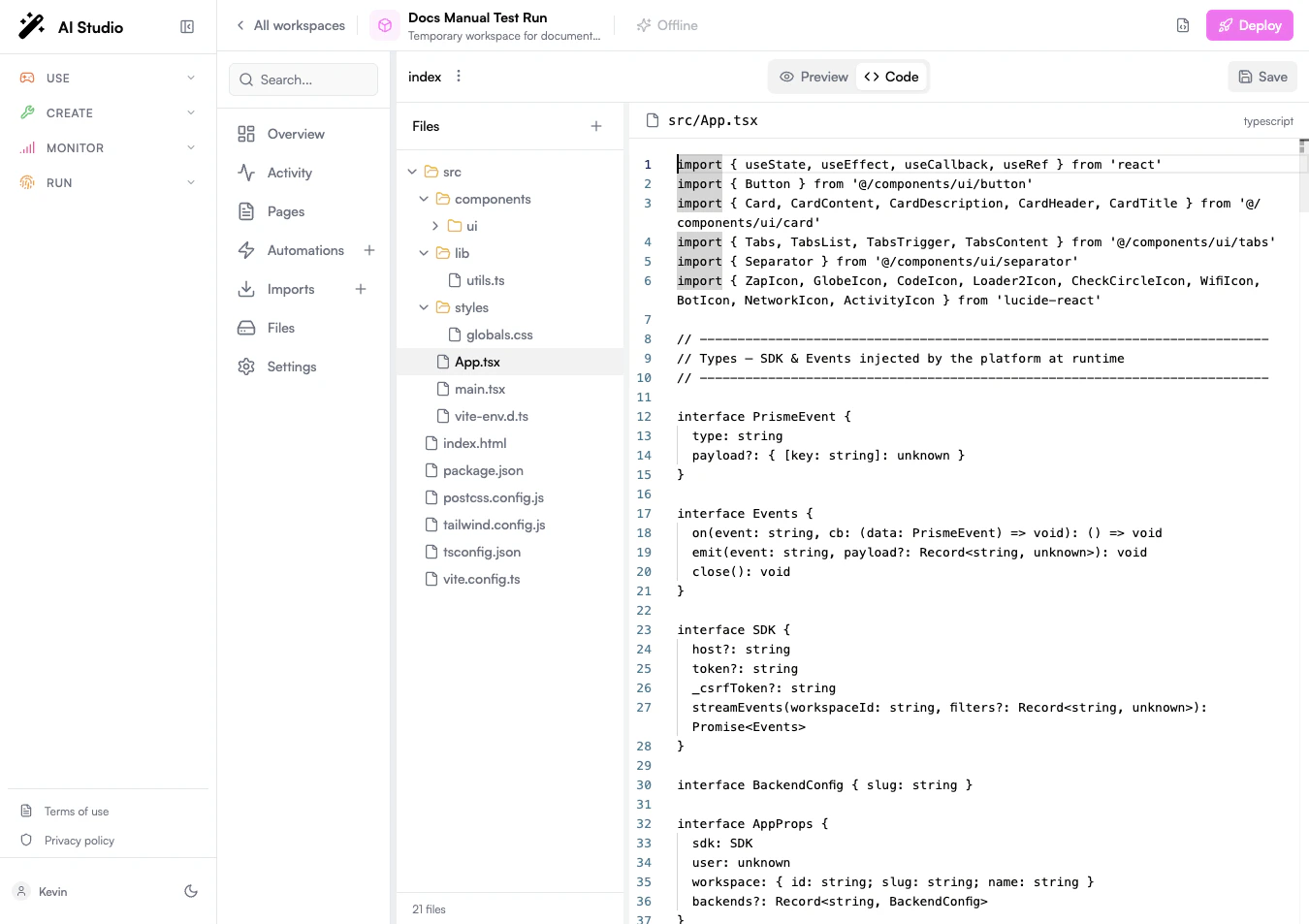
- Edit React and TypeScript files.
- Add reusable components under
src/components. - Update global styles under
src/styles. - Add utility functions under
src/liborsrc/hooks. - Configure Vite, Tailwind CSS, TypeScript, and package metadata.
Preview Mode
Preview mode compiles the source and renders the page inside Builder. Use the device controls to test:- Desktop
- Tablet
- Mobile
Connect to Automations
Pages usually become useful when they call or listen to automations.- HTTP Webhooks
- Events
- Activity
Use an automation with an endpoint when the page needs request-response behavior.
Deployed Bundles
When a workspace has deployed page bundles, Builder lists them under Pages as read-only entries. Read-only pages use a lock icon and cannot be edited from the source editor. Use them to inspect the deployed app while keeping the editable source separate. To change a deployed page:- Open the editable
indexsource. - Make and save changes.
- Deploy the workspace again.
- Reopen the deployed bundle preview.
Files and Assets
The Files section is separate from the page source tree. Use it for uploaded assets that belong to the workspace, such as PDFs, images, spreadsheets, or other binary files. For app source files, use Pages > Code. For workspace uploads, use Files.Troubleshooting
The preview stays on Initializing
The preview stays on Initializing
Open Code and verify that the workspace has a valid React entry point such as
src/App.tsx and src/main.tsx. If no files exist, initialize the template.The page shows a build error
The page shows a build error
Read the error in the preview, fix the corresponding source file, and return to Preview. Typical causes are invalid imports, missing exports, or TypeScript syntax errors.
The page cannot call an automation
The page cannot call an automation
Check that the automation endpoint exists, that the URL uses the current workspace slug, and that authentication headers include the platform token and CSRF token when required.
The UI action ran but no result appeared
The UI action ran but no result appeared
Open Activity, filter by the correlation ID, and inspect the automation trace. The request may have reached the backend but failed inside an instruction.
Next Steps
Automations
Build the backend workflows that pages call.
Testing & Debugging
Trace page actions through Activity and correlation IDs.
Integrations
Connect pages and automations to external systems.
Deployment
Publish the workspace once the page is ready.