> ## Documentation Index
> Fetch the complete documentation index at: https://prismeai-docs-next.mintlify.site/llms.txt
> Use this file to discover all available pages before exploring further.
# Prompt Management
> Use the built-in Prompt Library to quickly start conversations with ready-made, expert-crafted prompts
The **Prompt Library** gives every user instant access to a curated set of prompt templates right from the Chat home screen. Instead of writing a prompt from scratch, you can browse categories, preview a prompt, and send it in one click.
 ## How It Works
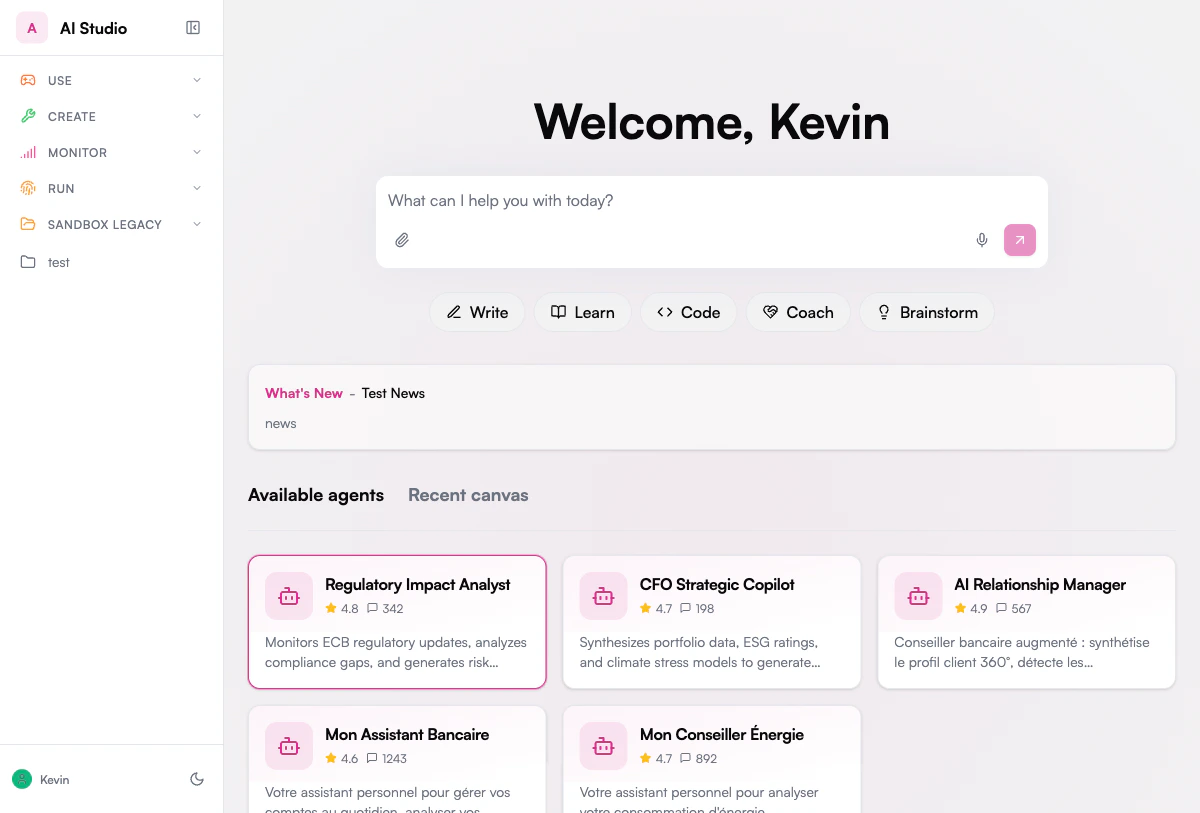
When you open the **Chat** home screen, category pills appear below the input box. Each pill represents a prompt category. Clicking a category opens a panel with all available prompts in that category.
Click on one of the category pills below the input box (e.g., **Write**, **Learn**, **Code**).
A floating panel opens with the list of prompts available in that category.
Hover over any prompt in the list. The first line of the prompt template is previewed directly in the input box, so you can see what it will send before committing.
Click the prompt you want. The full prompt template is loaded into the input box. You can then:
* **Edit the text** to add your own context or details before sending
* **Press Enter** to send the prompt as-is to the AI agent
## Default Categories
The Prompt Library ships with the following default categories, each containing ready-to-use templates:
Professional writing and communication: executive summaries, client emails, meeting notes, business proposals, release notes.
Knowledge extraction and understanding: explain a concept, summarize a document, compare options, industry briefs, Q\&A generation.
Software development assistance: code review, debugging, API design, SQL query building, test case generation.
Professional guidance and mentoring: constructive feedback, presentation prep, difficult conversations, career strategy, interview preparation.
Ideation and creative problem solving: idea generation, SWOT analysis, user stories, name generation, risk assessment.
Additional categories can be configured by administrators: **Sales**, **Support**, **Marketing**, **Engineering**, and **General**.
## Prompt Template Structure
Each prompt template includes:
| Field | Description |
| --------------- | ----------------------------------------------------------------- |
| **Title** | Short, descriptive name shown in the category panel |
| **Description** | Brief explanation of what the prompt does |
| **Content** | The full prompt text, crafted with expert instructions for the AI |
| **Arguments** | Placeholders you can fill in (e.g., *topic*, *context*, *code*) |
| **Category** | The category pill it appears under |
| **Tags** | Searchable keywords for discovery |
Some prompts also include **tool guidance** — they can suggest or force the AI to use specific tools (e.g., web search, knowledge base) to produce better answers.
## Example: Using a Prompt Template
Here's a typical workflow using the **Write > Executive Summary** prompt:
1. Click the **Write** category pill
2. Click **Executive Summary** in the panel
3. The input box fills with the prompt template
4. Replace the placeholder with your topic or paste your document content
5. Press Enter to get a professional executive summary
The AI will follow the template's expert instructions — in this case, producing a concise summary focused on key findings, business impact, and recommended next steps, in a tone appropriate for a C-level audience.
## For Administrators
A dedicated administration UI for creating, editing, and organizing prompt templates is **coming soon**. In the meantime, administrators can manage prompts directly through the **prompt-library** workspace's Collection in Builder.
## How It Works
When you open the **Chat** home screen, category pills appear below the input box. Each pill represents a prompt category. Clicking a category opens a panel with all available prompts in that category.
Click on one of the category pills below the input box (e.g., **Write**, **Learn**, **Code**).
A floating panel opens with the list of prompts available in that category.
Hover over any prompt in the list. The first line of the prompt template is previewed directly in the input box, so you can see what it will send before committing.
Click the prompt you want. The full prompt template is loaded into the input box. You can then:
* **Edit the text** to add your own context or details before sending
* **Press Enter** to send the prompt as-is to the AI agent
## Default Categories
The Prompt Library ships with the following default categories, each containing ready-to-use templates:
Professional writing and communication: executive summaries, client emails, meeting notes, business proposals, release notes.
Knowledge extraction and understanding: explain a concept, summarize a document, compare options, industry briefs, Q\&A generation.
Software development assistance: code review, debugging, API design, SQL query building, test case generation.
Professional guidance and mentoring: constructive feedback, presentation prep, difficult conversations, career strategy, interview preparation.
Ideation and creative problem solving: idea generation, SWOT analysis, user stories, name generation, risk assessment.
Additional categories can be configured by administrators: **Sales**, **Support**, **Marketing**, **Engineering**, and **General**.
## Prompt Template Structure
Each prompt template includes:
| Field | Description |
| --------------- | ----------------------------------------------------------------- |
| **Title** | Short, descriptive name shown in the category panel |
| **Description** | Brief explanation of what the prompt does |
| **Content** | The full prompt text, crafted with expert instructions for the AI |
| **Arguments** | Placeholders you can fill in (e.g., *topic*, *context*, *code*) |
| **Category** | The category pill it appears under |
| **Tags** | Searchable keywords for discovery |
Some prompts also include **tool guidance** — they can suggest or force the AI to use specific tools (e.g., web search, knowledge base) to produce better answers.
## Example: Using a Prompt Template
Here's a typical workflow using the **Write > Executive Summary** prompt:
1. Click the **Write** category pill
2. Click **Executive Summary** in the panel
3. The input box fills with the prompt template
4. Replace the placeholder with your topic or paste your document content
5. Press Enter to get a professional executive summary
The AI will follow the template's expert instructions — in this case, producing a concise summary focused on key findings, business impact, and recommended next steps, in a tone appropriate for a C-level audience.
## For Administrators
A dedicated administration UI for creating, editing, and organizing prompt templates is **coming soon**. In the meantime, administrators can manage prompts directly through the **prompt-library** workspace's Collection in Builder.