> ## Documentation Index
> Fetch the complete documentation index at: https://prismeai-docs-next.mintlify.site/llms.txt
> Use this file to discover all available pages before exploring further.
# Overview
> Discover Chat, the secure conversational interface for enterprise AI
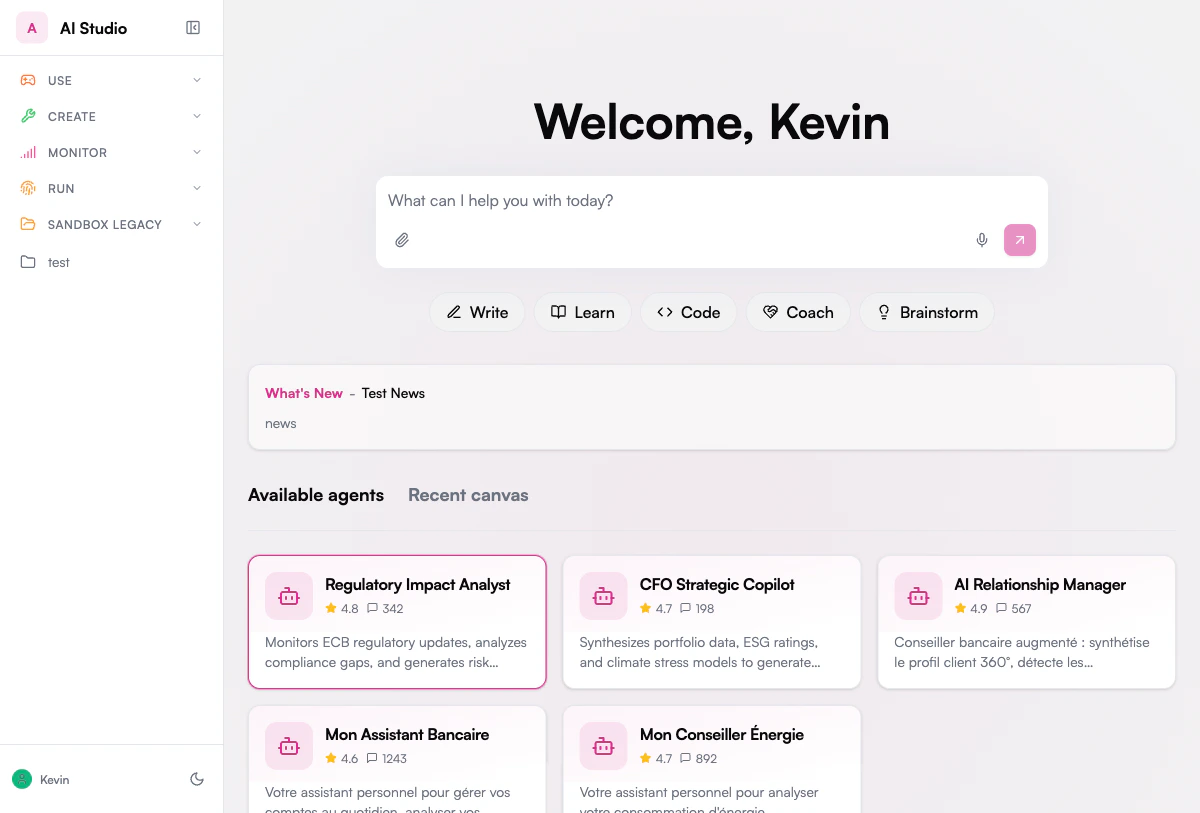 Chat is Prisme.ai's enterprise-grade conversational interface that enables all users to interact with AI in a secure, managed environment. Found under the **Use** menu in the sidebar, Chat consists of two tabs:
* **Chat** - Your main workspace for conversations with AI agents
* **Store** - Discover and browse available agents in your organization
Chat offers a familiar chat experience similar to consumer AI tools, but with the security, privacy, and integration capabilities required by organizations.
## Key Features
Connect to multiple language models from leading providers or use your own models
Upload and analyze documents in various formats (PDF, Word, Excel, PowerPoint, etc.)
Collaborative content creation workspace with AI assistance
Process and analyze images and audio when using compatible LLMs
Securely save and retrieve past conversations
End-to-end encryption, access controls, and compliance features
Connect to knowledge bases for organization-specific information
Browse curated prompt templates by category to get started faster
Extend functionality with specialized tools and integrations
## Who Uses Chat?
Chat is designed for all users within an organization, from executives to front-line employees. No technical expertise is required to start getting value from the platform.
Knowledge workers use Chat to:
* Draft and refine documents, emails, and presentations
* Research information from internal and external sources
* Summarize lengthy documents and extract key insights
* Collaborate on content creation using Canvas
Sales, support, and customer success teams use Chat to:
* Find product information and support documentation quickly
* Draft personalized customer communications
* Analyze customer feedback and identify trends
* Prepare for customer meetings and presentations
Developers, data scientists, and technical staff use Chat to:
* Generate and debug code
* Document technical solutions
* Explore data patterns and generate visualizations
* Troubleshoot technical issues
Executives and managers use Chat to:
* Prepare for meetings and presentations
* Analyze reports and extract key insights
* Draft communications to teams and stakeholders
* Stay informed about industry trends and developments
## Core Capabilities
### Conversational Interface
Chat provides a familiar chat interface where users can ask questions, request assistance, and collaborate with AI. Features include:
Chat is Prisme.ai's enterprise-grade conversational interface that enables all users to interact with AI in a secure, managed environment. Found under the **Use** menu in the sidebar, Chat consists of two tabs:
* **Chat** - Your main workspace for conversations with AI agents
* **Store** - Discover and browse available agents in your organization
Chat offers a familiar chat experience similar to consumer AI tools, but with the security, privacy, and integration capabilities required by organizations.
## Key Features
Connect to multiple language models from leading providers or use your own models
Upload and analyze documents in various formats (PDF, Word, Excel, PowerPoint, etc.)
Collaborative content creation workspace with AI assistance
Process and analyze images and audio when using compatible LLMs
Securely save and retrieve past conversations
End-to-end encryption, access controls, and compliance features
Connect to knowledge bases for organization-specific information
Browse curated prompt templates by category to get started faster
Extend functionality with specialized tools and integrations
## Who Uses Chat?
Chat is designed for all users within an organization, from executives to front-line employees. No technical expertise is required to start getting value from the platform.
Knowledge workers use Chat to:
* Draft and refine documents, emails, and presentations
* Research information from internal and external sources
* Summarize lengthy documents and extract key insights
* Collaborate on content creation using Canvas
Sales, support, and customer success teams use Chat to:
* Find product information and support documentation quickly
* Draft personalized customer communications
* Analyze customer feedback and identify trends
* Prepare for customer meetings and presentations
Developers, data scientists, and technical staff use Chat to:
* Generate and debug code
* Document technical solutions
* Explore data patterns and generate visualizations
* Troubleshoot technical issues
Executives and managers use Chat to:
* Prepare for meetings and presentations
* Analyze reports and extract key insights
* Draft communications to teams and stakeholders
* Stay informed about industry trends and developments
## Core Capabilities
### Conversational Interface
Chat provides a familiar chat interface where users can ask questions, request assistance, and collaborate with AI. Features include:
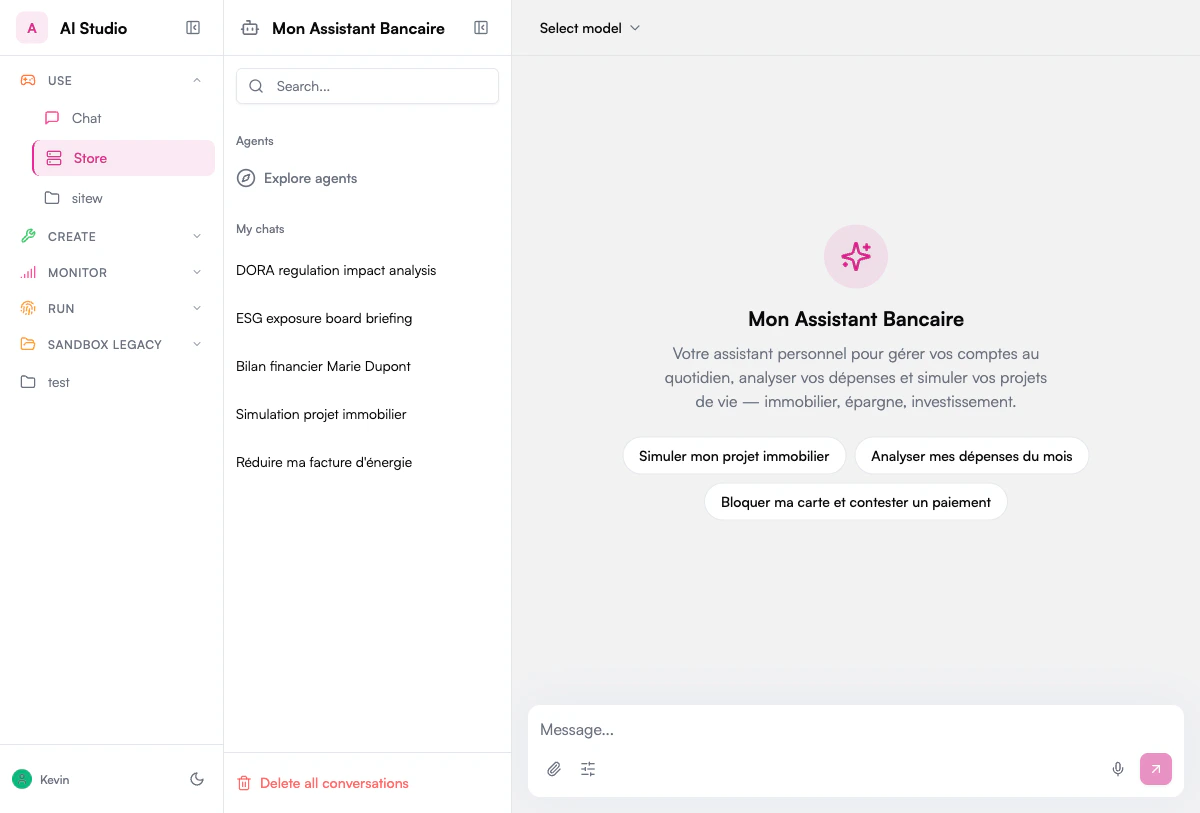 * Real-time streaming responses
* Rich text formatting
* Code highlighting and execution
* Multi-turn conversations with context retention
* Conversation bookmarking and organization
### Document Processing
Upload and analyze documents directly within conversations:
* Real-time streaming responses
* Rich text formatting
* Code highlighting and execution
* Multi-turn conversations with context retention
* Conversation bookmarking and organization
### Document Processing
Upload and analyze documents directly within conversations:
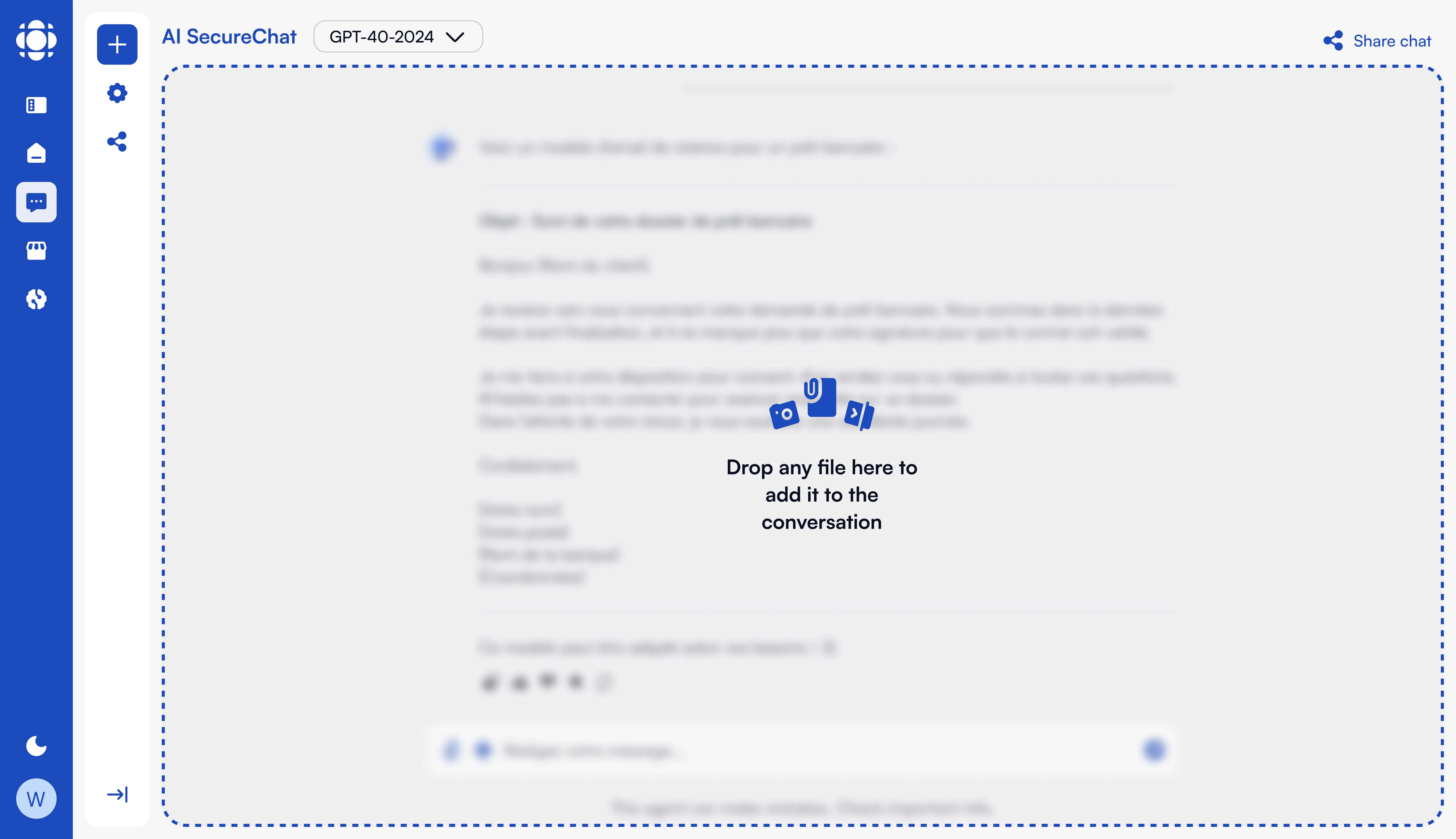 * Support for multiple file formats (PDF, Word, Excel, PowerPoint, images, etc.)
* Text extraction and OCR capabilities
* Document summarization and analysis
* Question answering based on document content
* Table and graph extraction and analysis
### Canvas Collaboration
Canvas provides a collaborative workspace for content creation with AI assistance:
* Support for multiple file formats (PDF, Word, Excel, PowerPoint, images, etc.)
* Text extraction and OCR capabilities
* Document summarization and analysis
* Question answering based on document content
* Table and graph extraction and analysis
### Canvas Collaboration
Canvas provides a collaborative workspace for content creation with AI assistance:
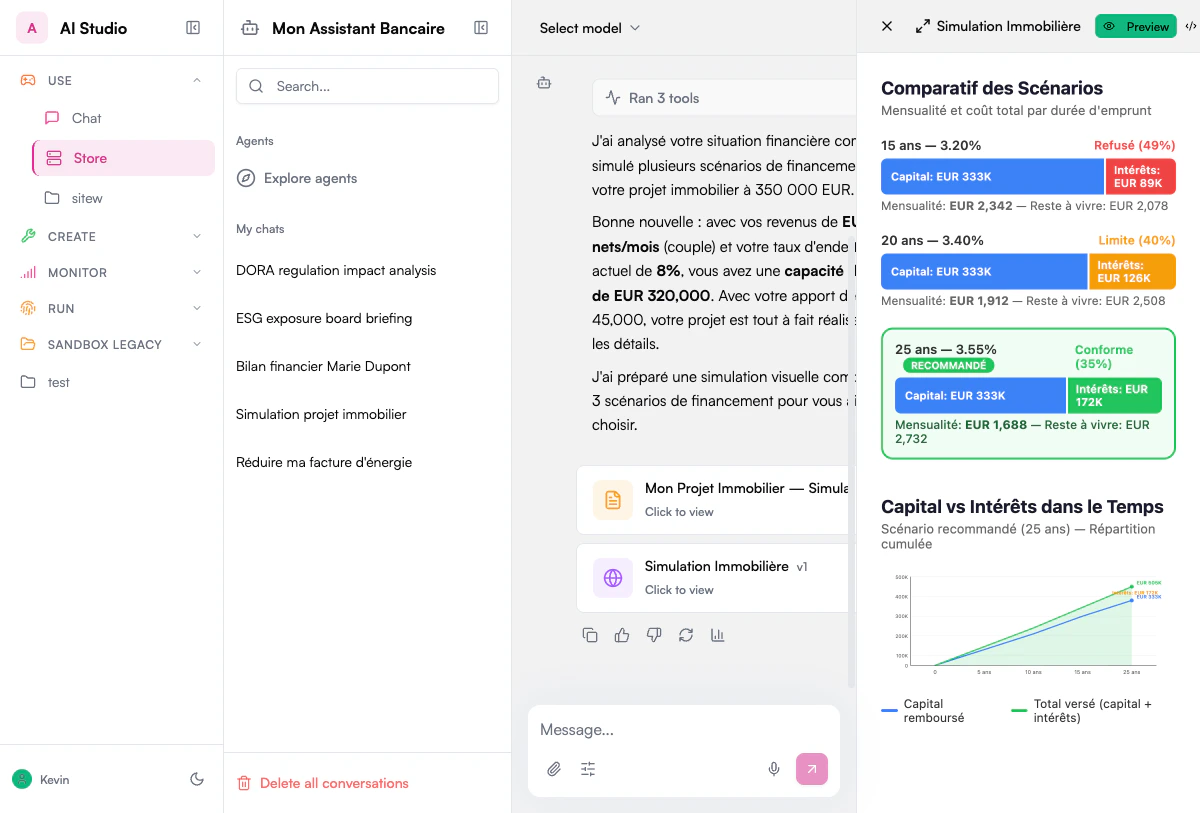 #### For Non-Technical Users
* Rich content editor with intuitive interface
* Intelligent context menu for generating responses, translations, and text refinement
* Export options to various formats
* Collaborative editing capabilities
#### For Technical Users
* Advanced code editor with syntax highlighting
* Specialized context menu for code-related operations
* Real-time preview for web content
* Direct export of generated code
### Multimodal Capabilities
When using compatible LLMs, Chat can process and analyze visual content:
#### For Non-Technical Users
* Rich content editor with intuitive interface
* Intelligent context menu for generating responses, translations, and text refinement
* Export options to various formats
* Collaborative editing capabilities
#### For Technical Users
* Advanced code editor with syntax highlighting
* Specialized context menu for code-related operations
* Real-time preview for web content
* Direct export of generated code
### Multimodal Capabilities
When using compatible LLMs, Chat can process and analyze visual content:
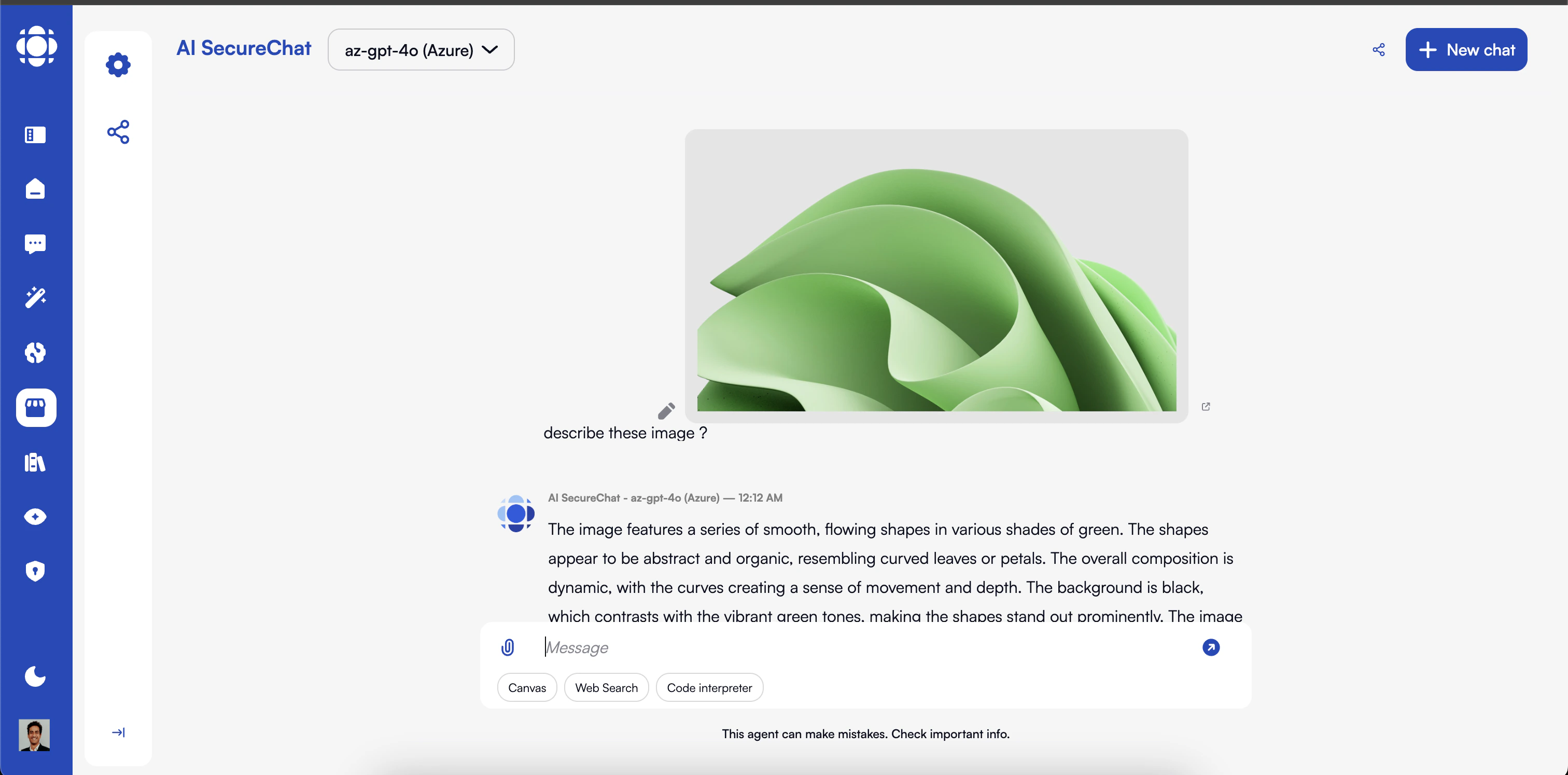 * Image analysis and description
* Visual question answering
* Chart and diagram interpretation
* Document layout analysis
* Image generation (with compatible models)
## Security and Privacy
Chat is built with enterprise security and privacy requirements in mind:
All conversations and data are encrypted in transit and at rest
Fine-grained permissions for users and groups
Control where your data is stored and processed
Comprehensive logs of all system activities
Automatic detection and handling of sensitive information
Features to support regulatory requirements
## Integration with Other Prisme.ai Products
Chat works seamlessly with other Prisme.ai products:
* **Agent Creator** - Create and configure agents that appear in the Store
* **Knowledges** - Access organization-specific knowledge bases through agents
* **Builder** - Connect structured data workflows to agents and chat experiences
* **Governe** - Apply security policies and access controls
* **Insights** - Track usage patterns and effectiveness
## Getting Started
Log in to your Prisme.ai instance. In the sidebar, find the **Use** menu and click **Chat**.
* Image analysis and description
* Visual question answering
* Chart and diagram interpretation
* Document layout analysis
* Image generation (with compatible models)
## Security and Privacy
Chat is built with enterprise security and privacy requirements in mind:
All conversations and data are encrypted in transit and at rest
Fine-grained permissions for users and groups
Control where your data is stored and processed
Comprehensive logs of all system activities
Automatic detection and handling of sensitive information
Features to support regulatory requirements
## Integration with Other Prisme.ai Products
Chat works seamlessly with other Prisme.ai products:
* **Agent Creator** - Create and configure agents that appear in the Store
* **Knowledges** - Access organization-specific knowledge bases through agents
* **Builder** - Connect structured data workflows to agents and chat experiences
* **Governe** - Apply security policies and access controls
* **Insights** - Track usage patterns and effectiveness
## Getting Started
Log in to your Prisme.ai instance. In the sidebar, find the **Use** menu and click **Chat**.
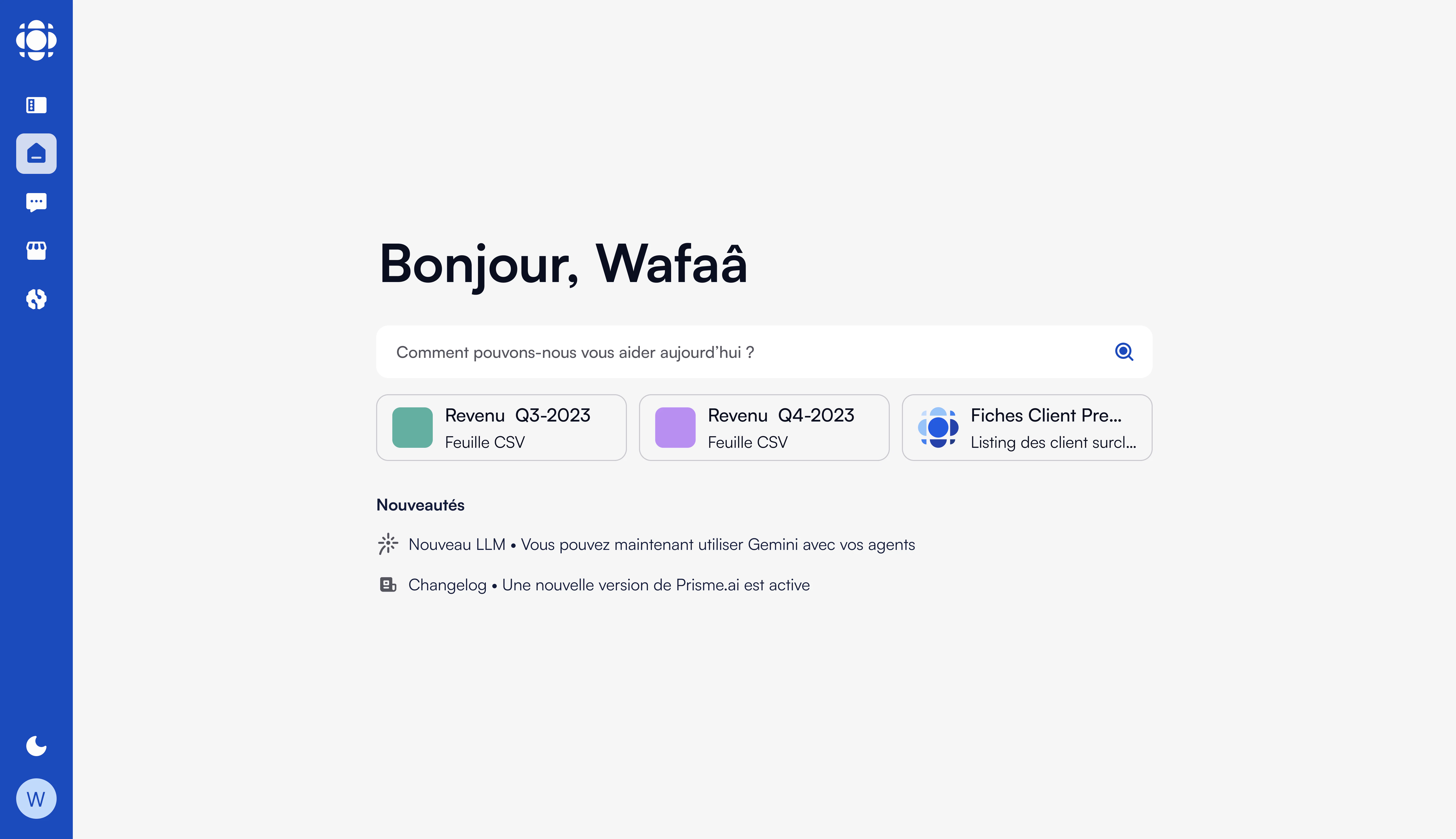 The Chat home screen shows available agents and recent canvas work. You can:
* **Start typing** in the input box to chat with the default agent
* **Click an agent card** to start a conversation with a specific agent
* **Go to Store** to browse all available agents
Click the **Attach file** button to analyze specific files.
The Chat home screen shows available agents and recent canvas work. You can:
* **Start typing** in the input box to chat with the default agent
* **Click an agent card** to start a conversation with a specific agent
* **Go to Store** to browse all available agents
Click the **Attach file** button to analyze specific files.
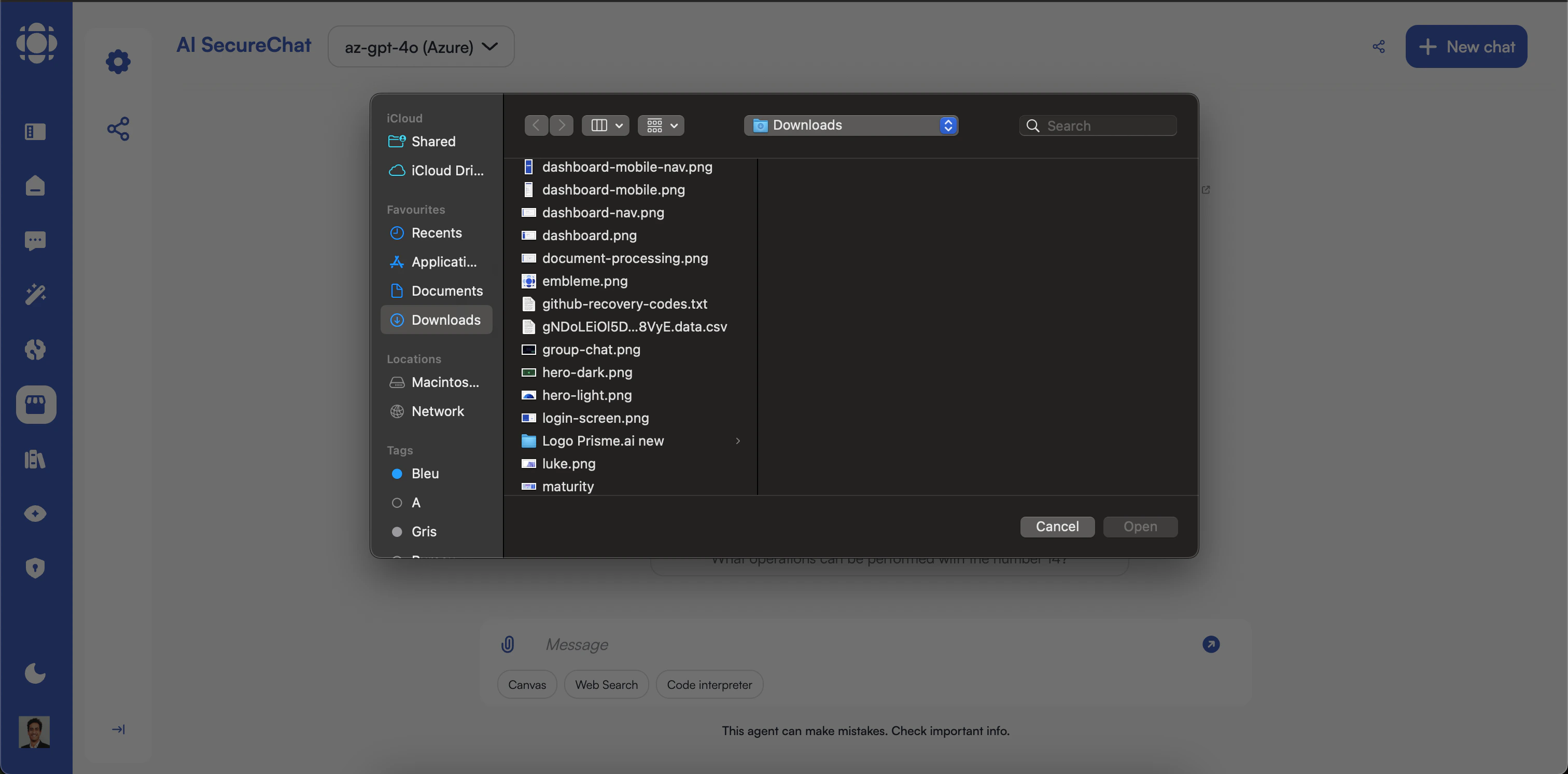 Once uploaded, you can ask questions about the document content.
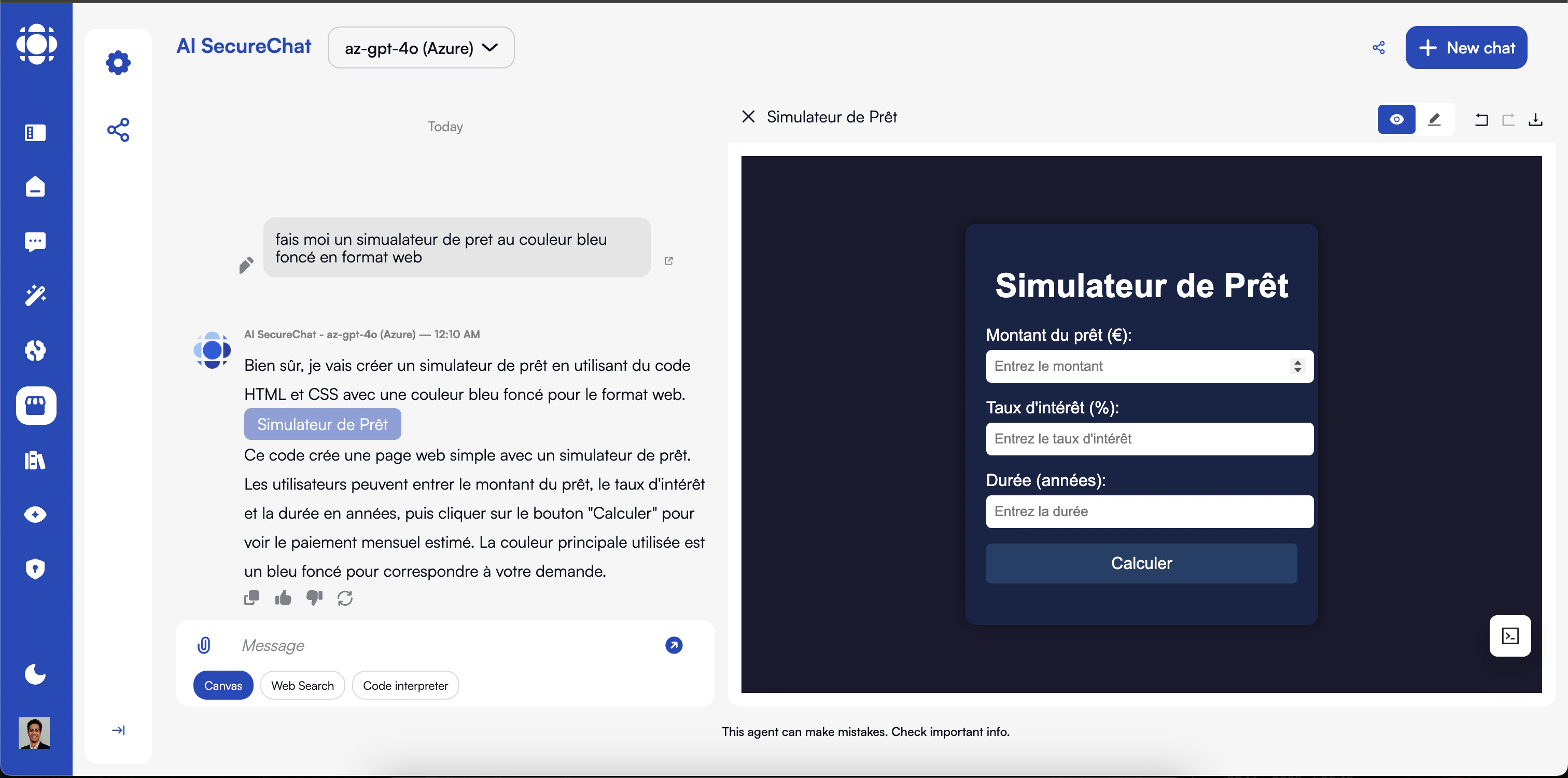
During a conversation, Canvas opens automatically when creating documents or code. Canvas provides specialized tools for both text and code creation.
Once uploaded, you can ask questions about the document content.
During a conversation, Canvas opens automatically when creating documents or code. Canvas provides specialized tools for both text and code creation.
 ## Next Steps
Explore more detailed guides for Chat features:
Detailed first steps for new users
Discover and browse available agents
Learn how to work with documents effectively
Organizing and managing your chat history
Master the collaborative content creation workspace
Working with images and visual content
Use ready-made prompt templates to get started faster
## Next Steps
Explore more detailed guides for Chat features:
Detailed first steps for new users
Discover and browse available agents
Learn how to work with documents effectively
Organizing and managing your chat history
Master the collaborative content creation workspace
Working with images and visual content
Use ready-made prompt templates to get started faster